Setup a Windows development environment
You'll find below the instructions on how to setup a development environment for Gladys 4.
System prerequisites
Please follow these links to prepare your OS.
WSL Configuration
Please ensure your system uses WSL2 by running following command:
wsl.exe --set-default-version 2
From the Microsoft Store, search and install Ubuntu 20.04. This can take some time, dependong on your connection speed.
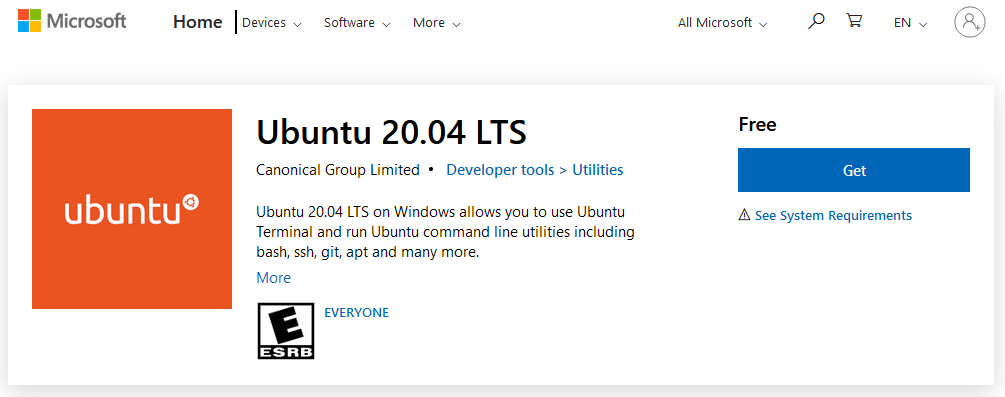
Now you can run Ubuntu; from your start menu please launch Ubuntu 20.04 LTS. The first time you run Ubuntu, you will be asked to create a user.
Install system dependencies
First thing to do is to update distribution by running theses commands:
sudo apt update && sudo apt upgrade -y && sudo apt autoremove -y
- Libraries installation:
sudo apt install sqlite3 make g++ git coreutils tzdata nmap openssl gzip udev -y
- Node.js 18 Installation:
curl -sL https://deb.nodesource.com/setup_18.x -o nodesource_setup.sh
sudo bash nodesource_setup.sh
sudo apt install nodejs -y
Alternatively you can use nvm to install and manage nodejs version.
Server
The server is a Node.js app.
Clone Gladys Git repo
git clone https://github.com/GladysAssistant/Gladys gladys && cd gladys
Install NPM dependencies
cd server
As you probaly don't need to run every single integration when developing, we recommend you create a .env file in the server folder with the following content:
INSTALL_SERVICES_SILENT_FAIL=true
Then you can install server dependencies:
npm install
Start DB migration
npm run db-migrate:dev
Start the server
npm start
The server should be accessible at http://localhost:1443.
Frontend
At the root of the git repo, do:
cd front
Install NPM dependencies
npm install
Start the frontend
npm start
The frontend should be accessible at http://localhost:1444.
Start server tests
Go to the server folder.
And run:
npm test
This will run Eslint + mocha tests. As it's painful to run eslint everytime, you can do:
npm run test-without-lint
If you want to run only mocha tests.
Start server tests only for a single service
To run the tests just for a single service, go to the server folder and run the command:
npm run test-service --service=tasmota
Start VSCode
You can launch Visual Studio Code from ubuntu by running command:
code .